Day 3: Put Hermes Where Requests Happen
Why messaging matters
Using Hermes only in the terminal is like hiring someone and locking them in the server room. They can work, but every request requires opening a laptop, finding the right directory, and typing commands. Messaging integrations matter for a practical reason: real requests happen in chat. You remember something on the road. A teammate drops context into a group. You need a file summarized from your phone.
Day 3 is not about connecting every platform. It is about giving Hermes one reliable entry point.
Check your actual version and menu
Some walkthroughs focus on WeChat. Others focus on Feishu, Telegram, Discord, or Slack. Do not memorize option numbers. Hermes changes quickly, and menus differ by version, platform, and installation path.
Start here:
hermes update
hermes gateway setup
hermes gateway status
Choose the platform that your real workflow already uses and that you can test safely. For China-focused personal workflows, Feishu, WeCom, or WeChat-style channels may feel natural if your version supports them. For global teams, Telegram, Discord, and Slack are often easier. The principle is simple: follow the user’s request flow, not the tutorial author’s favorite channel.
Convenience increases risk
In a terminal, users behave carefully because commands feel like machine operations. Chat is different. You can send a message from a bus. A teammate can mention the bot in a group. The easier the entry point becomes, the tighter the boundary must be.
For the first version, allow only:
- summarize text;
- draft a reply;
- search approved material;
- queue a task;
- ask for human confirmation.
Do not allow yet:
- deleting files;
- sending external messages;
- responding to everyone in a group;
- deploying services without approval;
- saving secrets from chat.
A safe setup flow
- Run
hermes gateway setup. - Choose one channel, not five.
- If QR login or authorization is required, confirm the source before scanning.
- Configure allowlisted accounts or pairing. Unknown accounts should not gain control.
- Start the gateway with
hermes gateway start. - Send a read-only message from your phone.
- Check gateway status and logs.
Test failure paths too
Useful tests include:
- Send an unknown command and confirm Hermes refuses instead of guessing.
- Ask it to delete a file and confirm it asks for approval.
- Mention it in a group and confirm scope rules work.
- Restart the gateway and confirm reconnection.
These tests matter more than a successful demo reply.
Ship this artifact
Create hermes-day-3-gateway.md:
channel: "Feishu / WeChat / Telegram / Discord / Slack"
setup_command: "hermes gateway setup"
allowed_users:
  - "your own account"
safe_intents:
  - summarize
  - draft
  - search
  - queue
approval_required:
  - send
  - delete
  - deploy
  - purchase
failure_tests:
  - unknown command rejected
  - write action asks for confirmation
  - gateway restart tested
Tomorrow you move from chat to real work: files, data, and reviewable artifacts.
Next step
- Day 4: Make Hermes handle files and data - turn messy inputs into usable outputs.
- Automation Recipes - later turn stable requests into scheduled workflows.
Beginner Walkthrough: Connect One Messaging Channel
Messaging setup is where many field notes become detailed. The beginner rule is simple: connect one channel, prove private chat works, then consider groups or scheduled notifications.
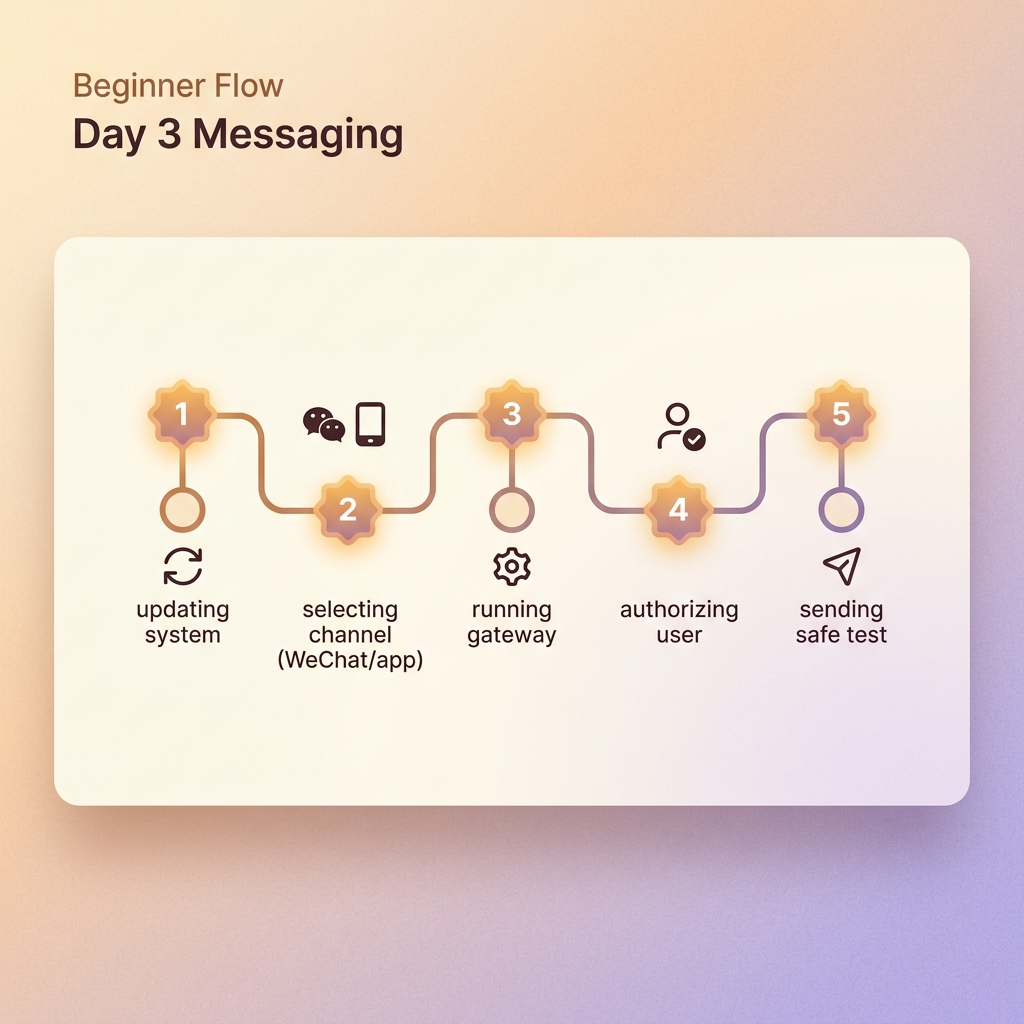
Step 1: Update first
hermes update
hermes gateway status || true
If a channel is missing, do not chase old screenshots. Upgrade first and trust the menu shown by your version.
Step 2: Run gateway setup
hermes gateway setup
If your version says hermes setup gateway, follow your version. Menu numbers can change.
Step 3A: Feishu/Lark path
- Create an app in the Feishu developer console.
- Enable bot capability.
- Request message permissions and event subscriptions.
- Copy App ID and App Secret.
- Choose Feishu/Lark in gateway setup and paste credentials.
- Complete pairing with link or auth code if prompted.
- Start and check the gateway.
hermes gateway start
hermes gateway status
tail -f ~/.hermes/logs/gateway.log
Step 3B: WeChat-style path
Confirm that your version supports the channel. The usual flow is: choose channel, confirm login, open authorization link, scan from phone, choose private-chat policy, then set the main channel if needed.
hermes gateway setup
If the QR or authorization link expires, regenerate it. If phone chat does not respond yet, return to the terminal and finish the wizard.
Step 4: First safe message
Do only a read-only test. Do not modify files or send external messages.
Tell me:
1. which channel received this message;
2. what the default workspace is;
3. which actions require my approval.
Step 5: Set the home chat
/set-home
Use this when the current chat should receive future notifications and scheduled task results.
Common Day 3 problems
- Channel is missing: update Hermes.
- Scan succeeds but no response: finish the terminal wizard.
- Bot is silent: inspect
gateway.log. - Group chat is noisy: disable groups and keep private allowlisted chat first.
Leave this file behind
channel: "Feishu / WeChat-style / Telegram / Discord"
gateway_command: "hermes gateway setup"
allowed_users:
  - "your account"
first_test: "read-only message passed"
approval_required:
  - send external message
  - delete files
  - deploy services